Connect printers and a cash drawer
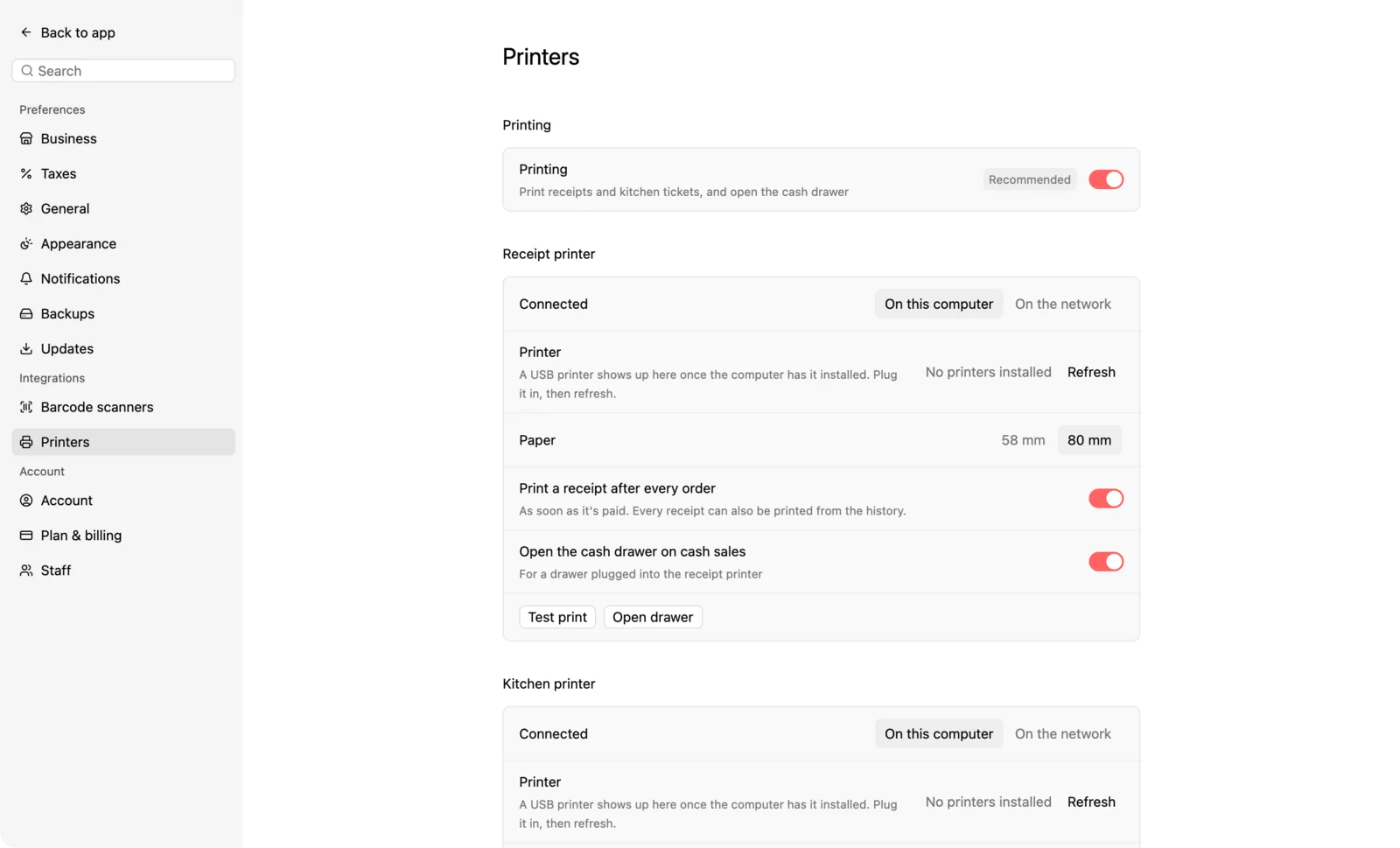
Print receipts and kitchen tickets, and open the drawer when a sale is paid in cash.
- 1
Pick how it prints
In Settings › Printers, choose Thermal (ESC/POS) for a receipt printer, or Printer driver for an ordinary printer installed in your computer's printer settings. Either way, Qovah prints without a print dialog.
- 2
Find your printer
Qovah looks for printers on your network when the page opens, and lists the ones installed on this computer; Refresh looks again. A thermal printer on the network can also be added by its IP address.
- 3
Set the paper and test
Choose 80 mm or 58 mm paper for a thermal printer, then print a test page.
- 4
Add a kitchen printer
Restaurants and cafés can set up a second printer for the kitchen, with a ticket for every paid order.
- 5
Choose what happens after a sale
Print a receipt as soon as a sale is paid, open the cash drawer on cash sales, and print kitchen tickets.